02 Litematica Tutorial
1 Brief Introduction to Litematica
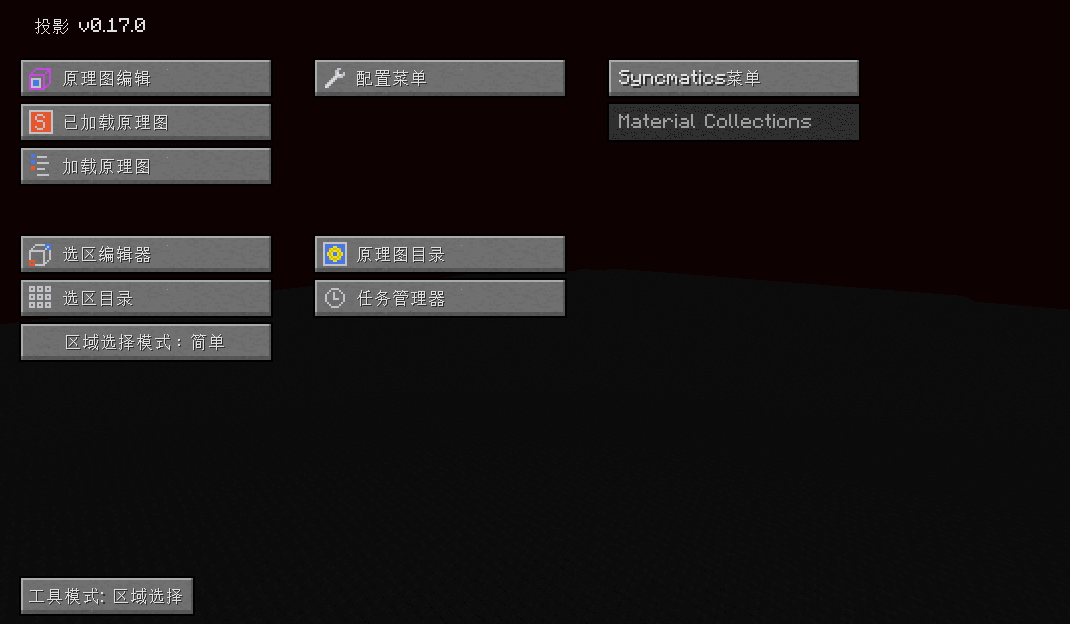
By default, the hotkey for the Litematica main menu is M. Press it to open the main menu.
In the configuration menu, you can change hotkeys and toggle various Litematica features.
When holding the Litematica tool in your main hand or offhand, the Litematica menu bar will appear in the lower left corner.

Use ctrl+scroll wheel to switch modes.
1.1 Mode 1 -- Area Selection
There are two area selection modes, switchable from the main menu. Beginners should use Simple mode, and set the corner mode to "Corners" in the Area Editor.
1.1.1 Simple Mode
In simple mode, there is only one selection area. Left-click and right-click to set the two corner points of your selection.
Use middle-click on a corner (or elsewhere in the selection) to select it. Once selected, hold alt and scroll the mouse wheel to move the corner (or the entire selection).

In the selection editor, you can change the name of the selection or save the schematic.

1.1.2 Normal Mode
For large machines, saving in simple mode can cause inconveniences during construction. Normal mode solves this.
In normal mode, selections are not created automatically. You need to create them manually:
- Open
Litematica Main Menu - Selection Manager - New Selection

- To create a sub-selection, select "New Sub-region" in
Litematica Main Menu - Area Editor. You can also rebind theAdd Selectionhotkey in Configuration Menu - Hotkeys for faster access.
Use middle-click to select a sub-selection corner (or the sub-selection itself).
The final result is shown in the image
The steps to save the schematic are the same as in simple mode.
1.2 Mode 2: Schematic Placement & Mode 5: Schematic Paste
Import external schematics (skip if none).
It is recommended to enable the custom schematic directory in Litematica settings, so all game versions can share the same schematic save location.

Then place the downloaded schematics into this folder.
- Load the schematic in-game
Litematica Main Menu - Load Schematics Select the desired schematic and click "Load Schematic" in the lower left corner.
- Adjust and rotate the schematic
Use middle-click to select the schematic. Hold alt and scroll the mouse wheel to move it.
Litematica Main Menu - Configure Schematic Select the desired schematic and click the configure button to enter the configuration interface.

On the right side of the configuration interface, you can adjust the schematic origin position and rotate/mirror the schematic.
Warning: Unless the author states otherwise, do not rotate or mirror machines, as this will likely cause them to malfunction.
- Paste the schematic (creative only)